

General Principles
- start with a prompt
- use
dependencies - help the agent out if it went wrong
- use
run locallyandPlaywright Codegen - work on multiple test cases in parallel
Start with a prompt
There are multiple ways to start with a prompt.-
On sign-up choose as many test cases as possible from the catalogue (login, link checks, change language)
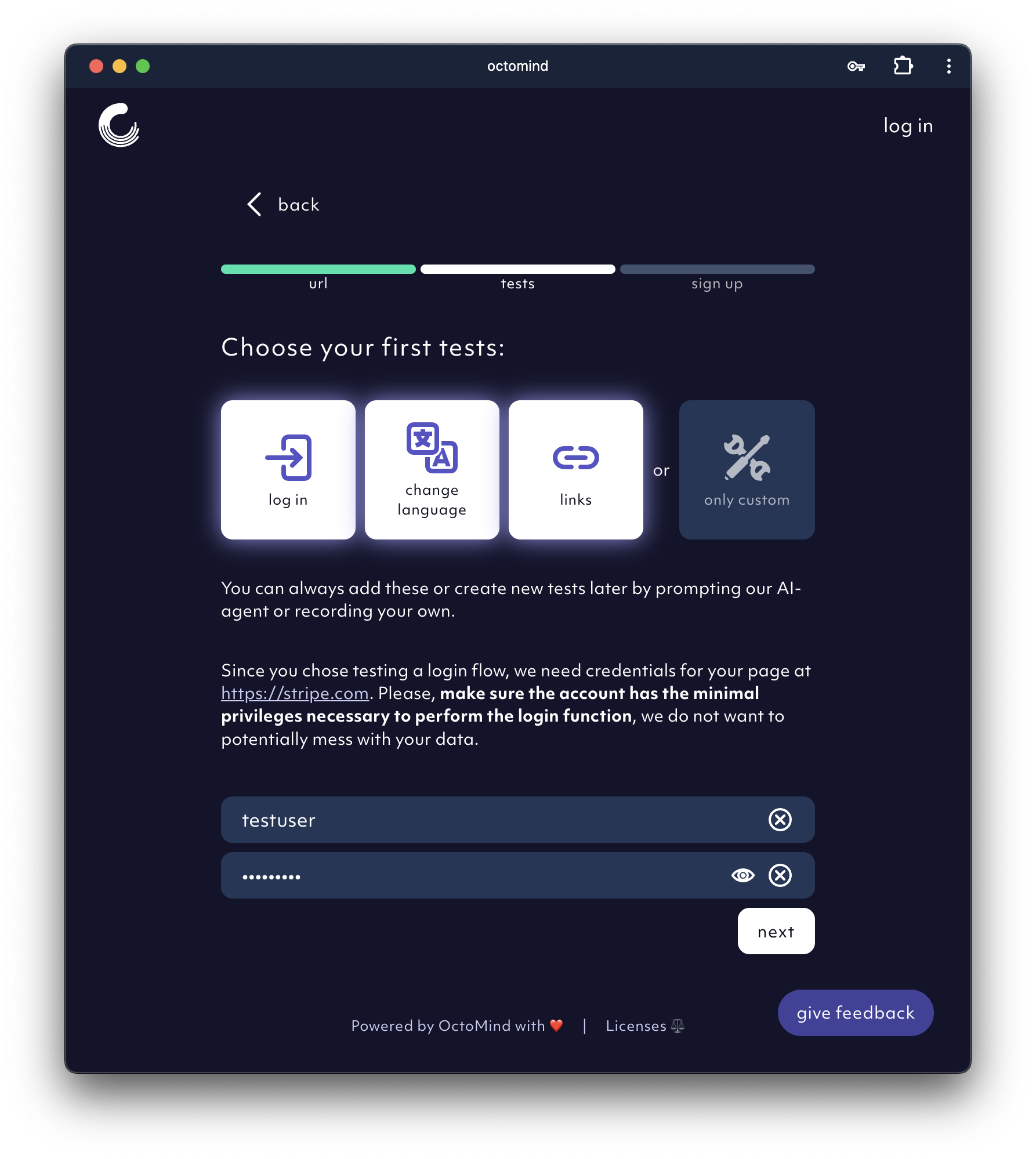
Select test cases on sign-up, screenshot 02/2024
-
Always use “Discover test cases” from the overview page. It gives you a head start.
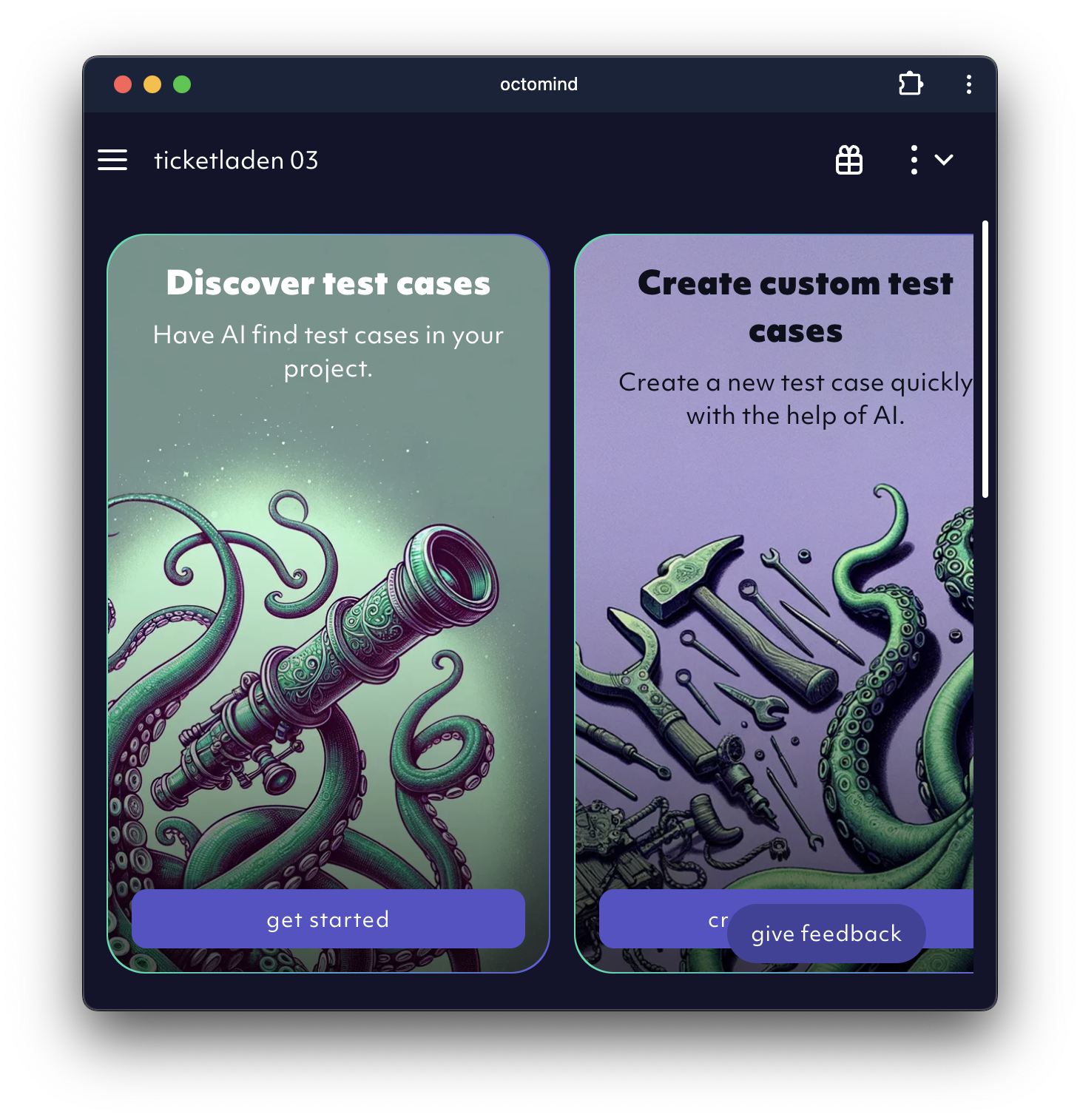
Discover test cases from overiew page, screenshot 02/2024
-
Use “create custom test cases” from the overview page.
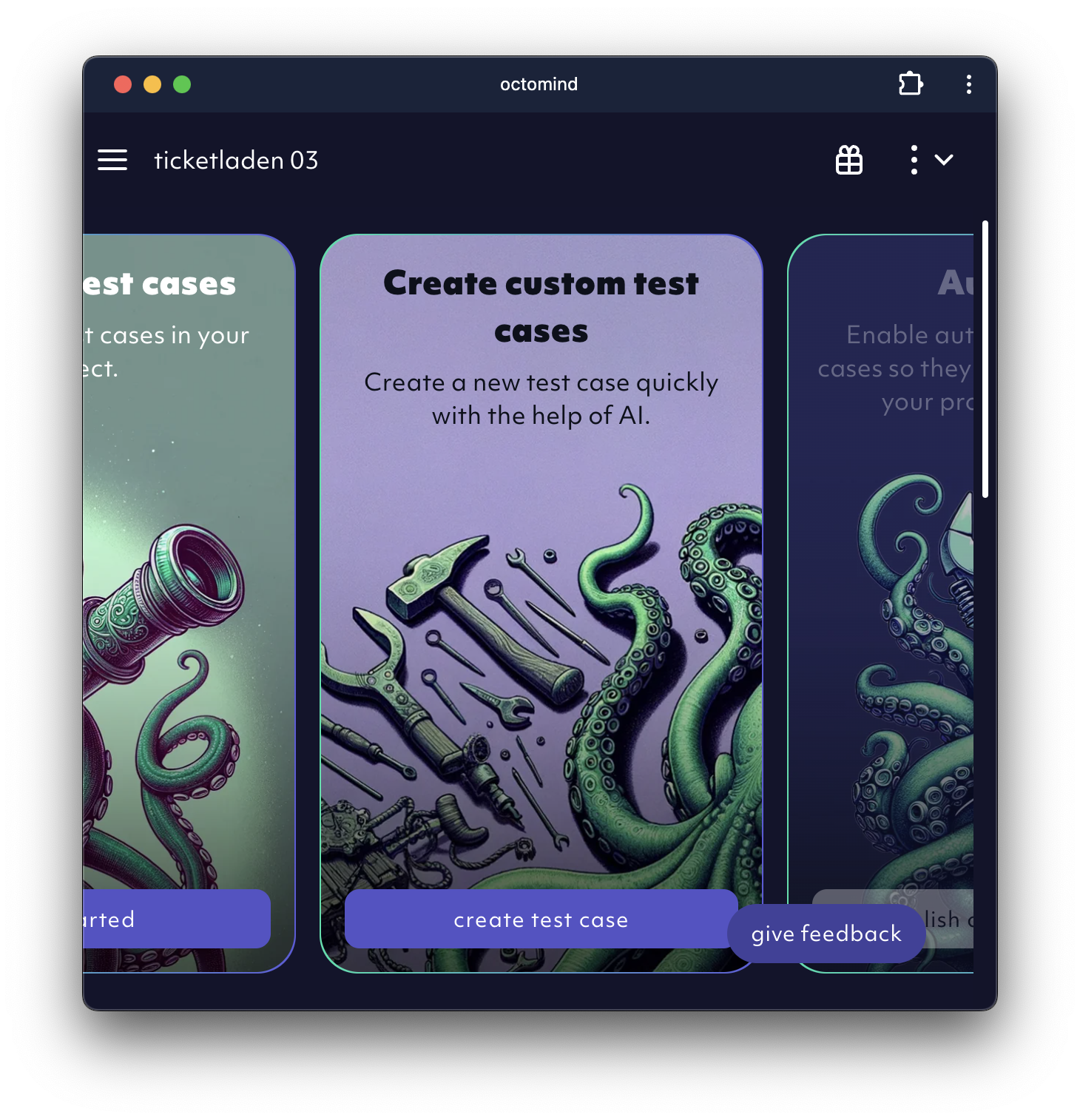
Start test case creation from the overview page, screenshot 02/2024
Use dependencies
Keep test cases short and to the point. Ideally each test case represents a small task you want to achieve. One technique to make this happen is using dependencies. Typically the first test case you need is “accept all cookies”. The second one is “login with username and password” and the third one might be “open profile page”. The second test case would have to take care of cookies during its execution. The third test case would have to take care of cookies and login. This is because every test case runs in isolation and therefore always needs to include the full flow. This is where dependencies - or test case chaining - gets really valuable. Make “accept all cookies” a dependency of “login with username and password” and make “login with username and password” a dependency of “open profile page” to chain them together. This way the test runner as well as the AI Agent are using pre-play to execute dependencies before starting their actual work.Example
-
The
accept cookiestest case does not have a dependency as it is the first test case in the chain.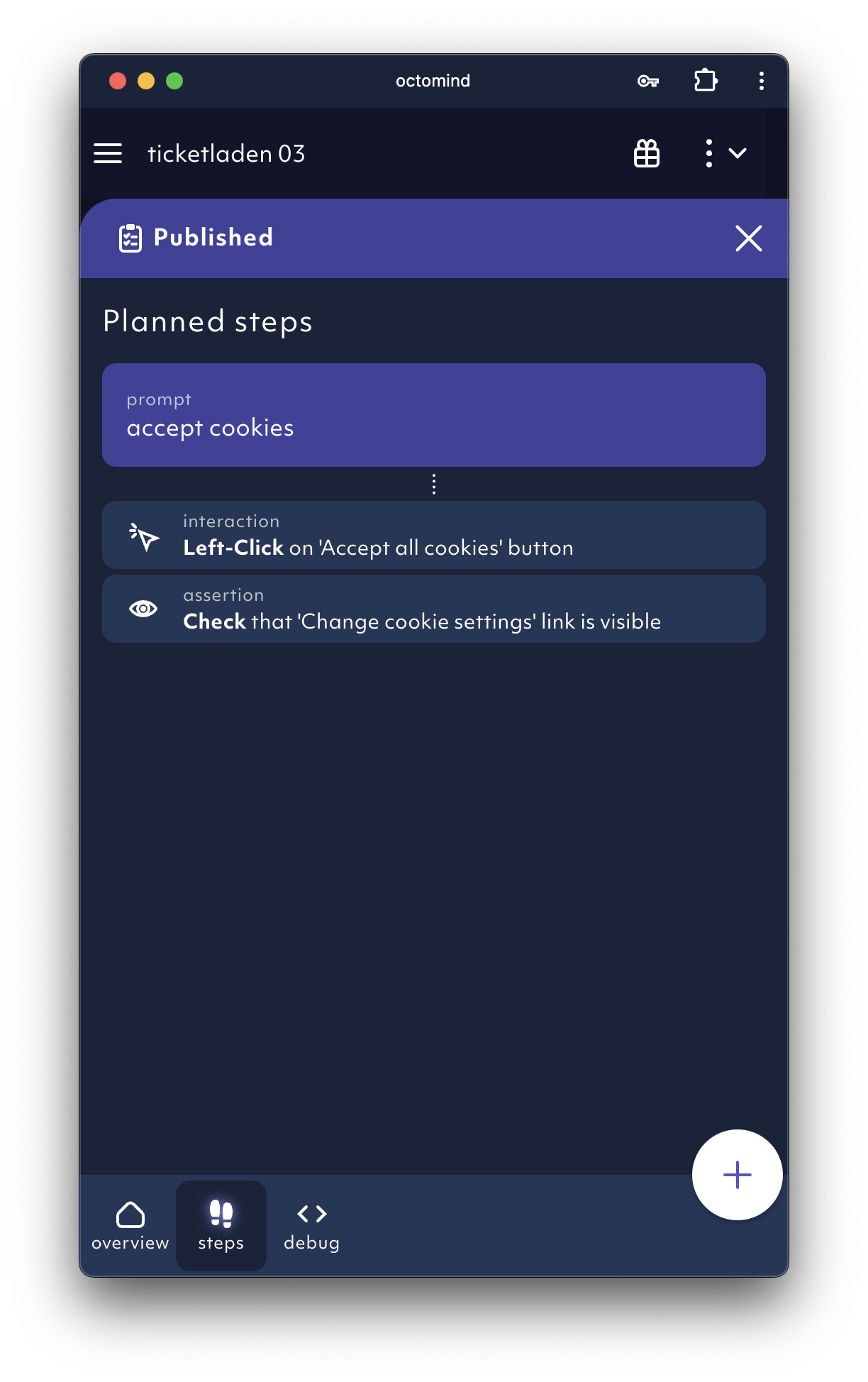
no dependency for accept cookies, screenshot 02/2024
-
The
login with username and passwordtest case depends on theaccept cookiestest case.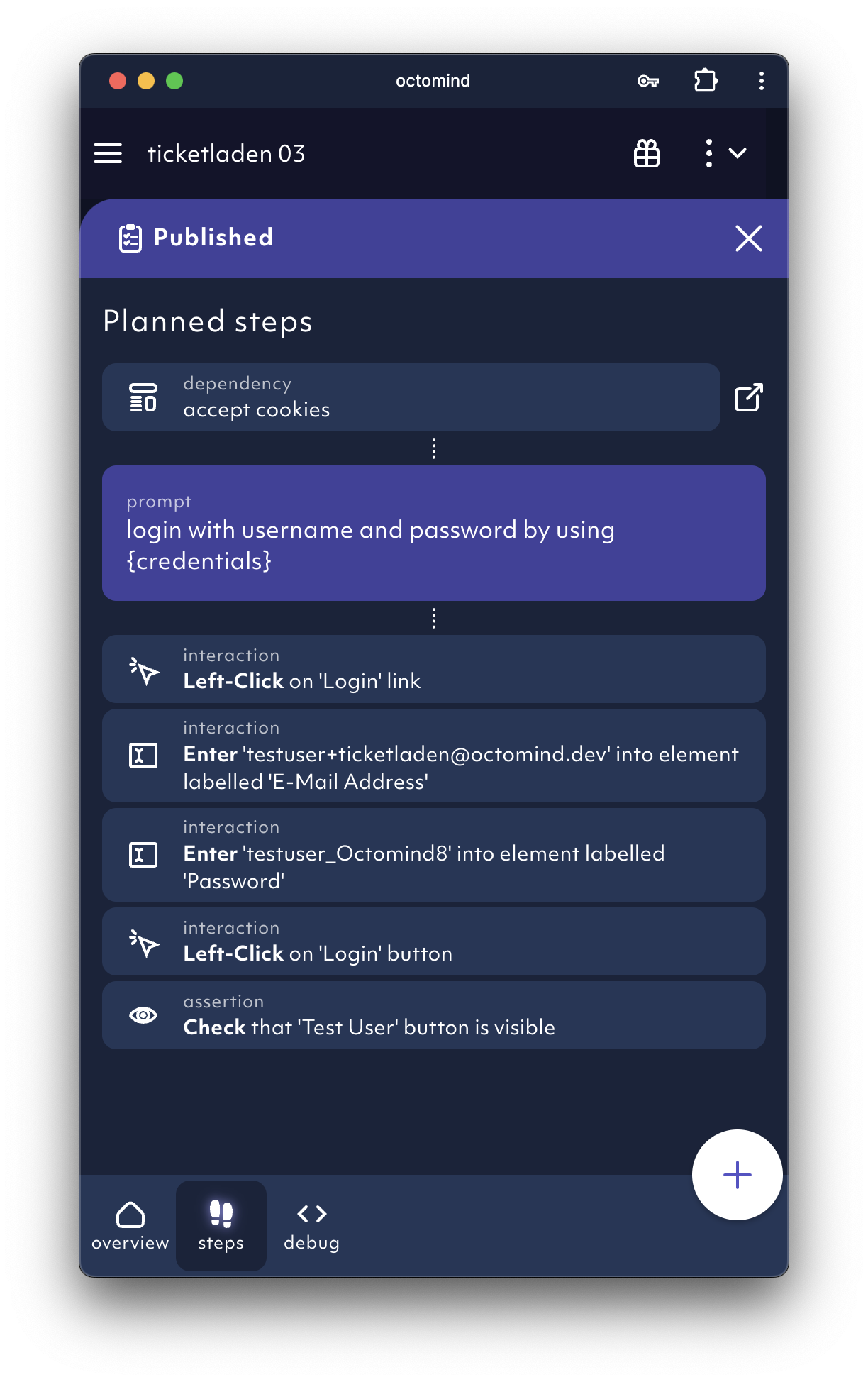
login with username and password depends on 'accept cookies', screenshot 02/2024
-
The
open profiletest case depends on thelogin with username and passwordtest case.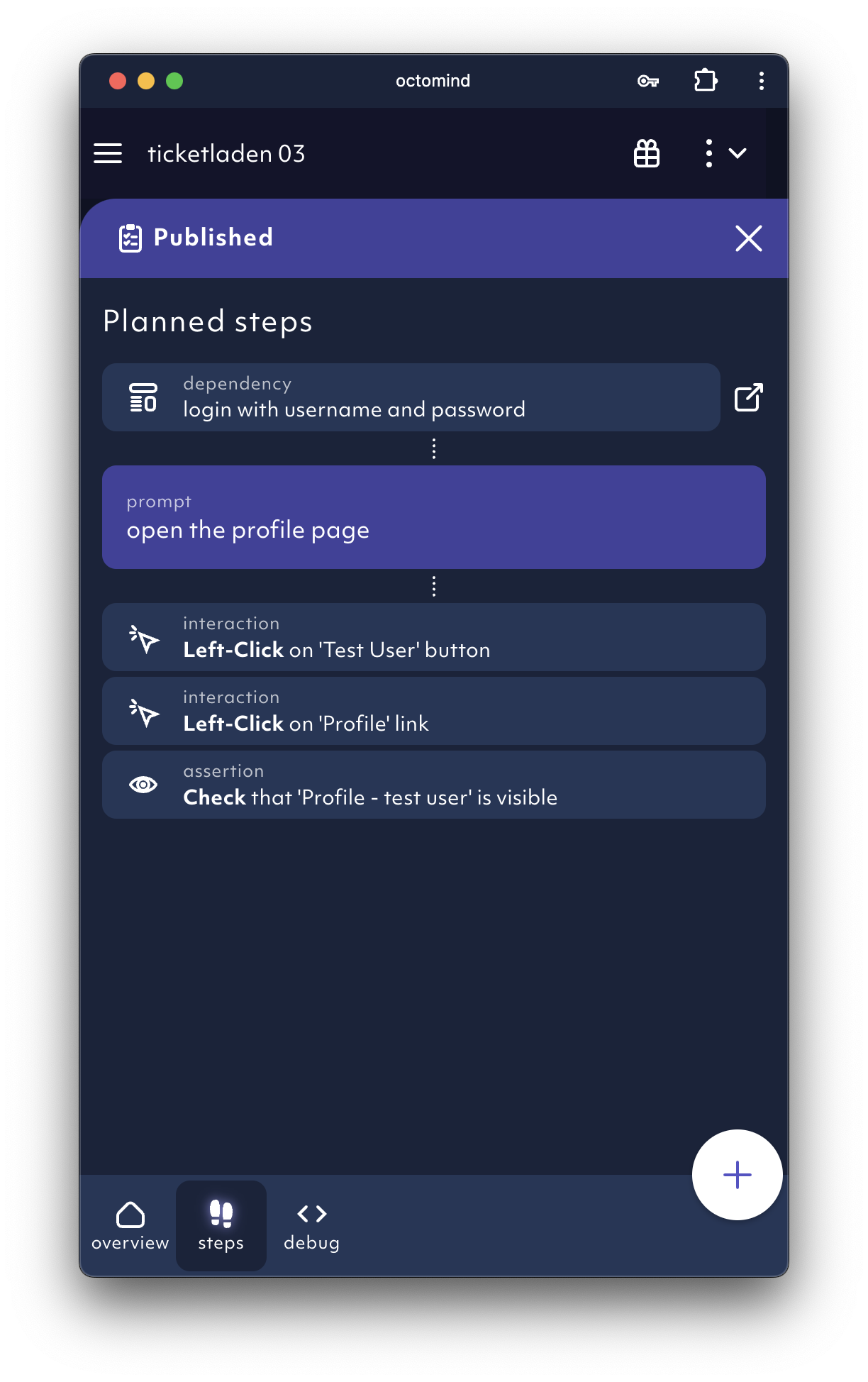
Open profile depends on login with username and password, screenshot 02/2024
Help the agent out if it went wrong
We are constantly improving the agent but it still might make mistakes. In this case you need to help it find its way. Use the step inspector to fine tune interactions and assertions.Add missing steps
You can add missing steps by clicking the+ icon and choosing the desired interaction or assertion.
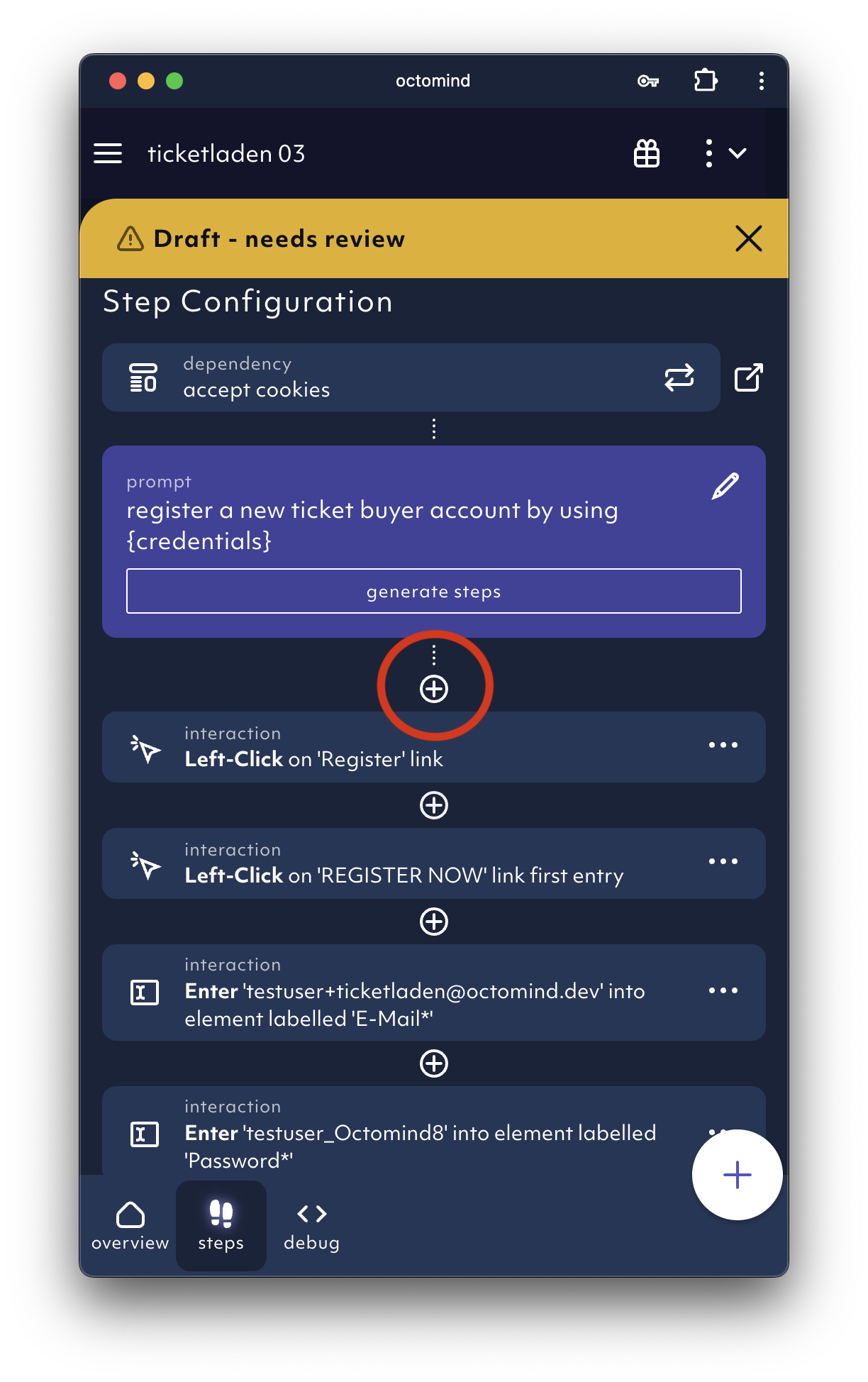
add missing steps, screenshot 02/2024
Delete unnecessary steps
You can easily delete unnecessary steps by clicking the trash can symbol.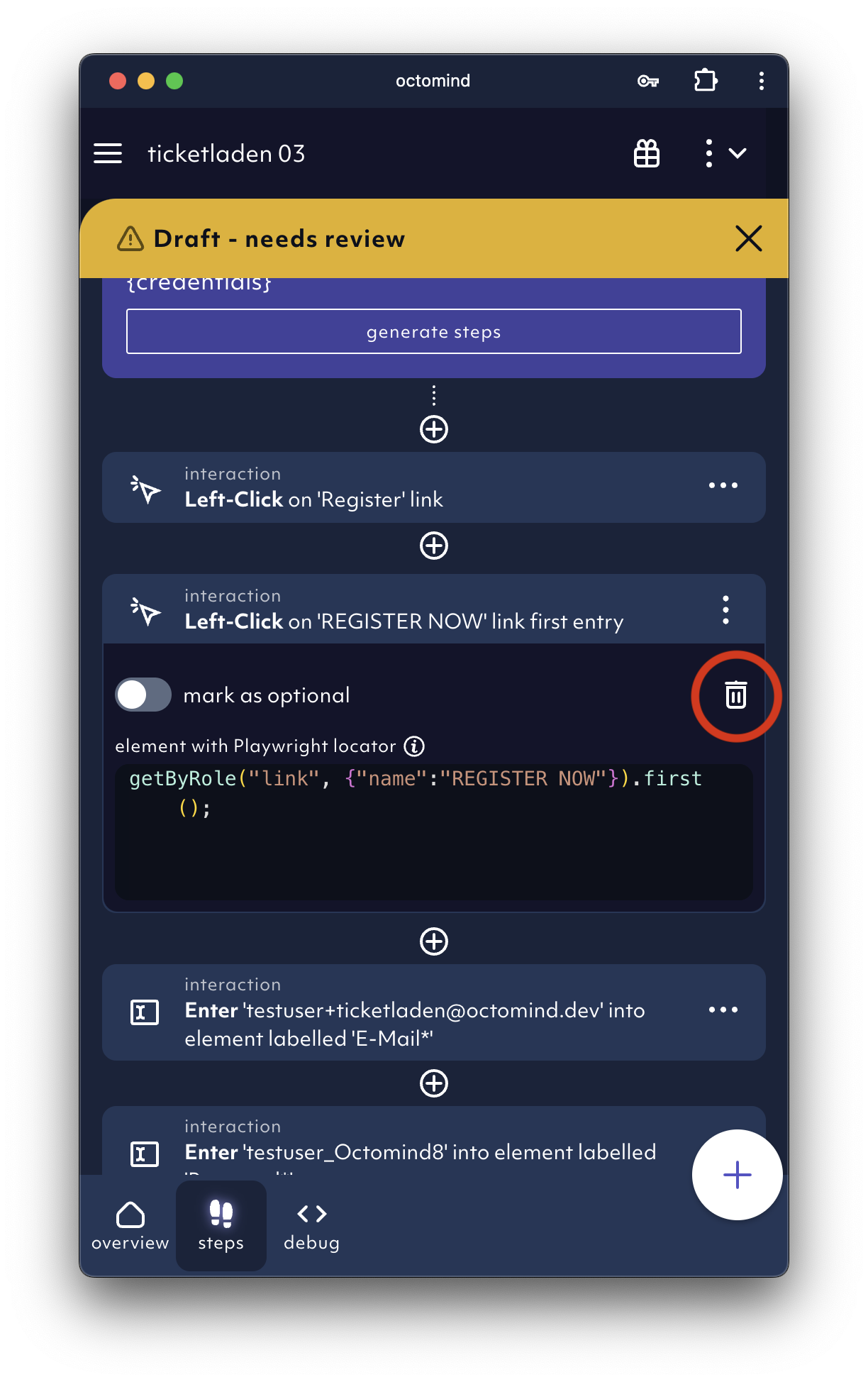
delete obsolete steps, screenshot 02/2024
Run test cases
Running a test case is producing a trace. A trace is a detailed description of what happened during test case execution. Use the trace for debugging.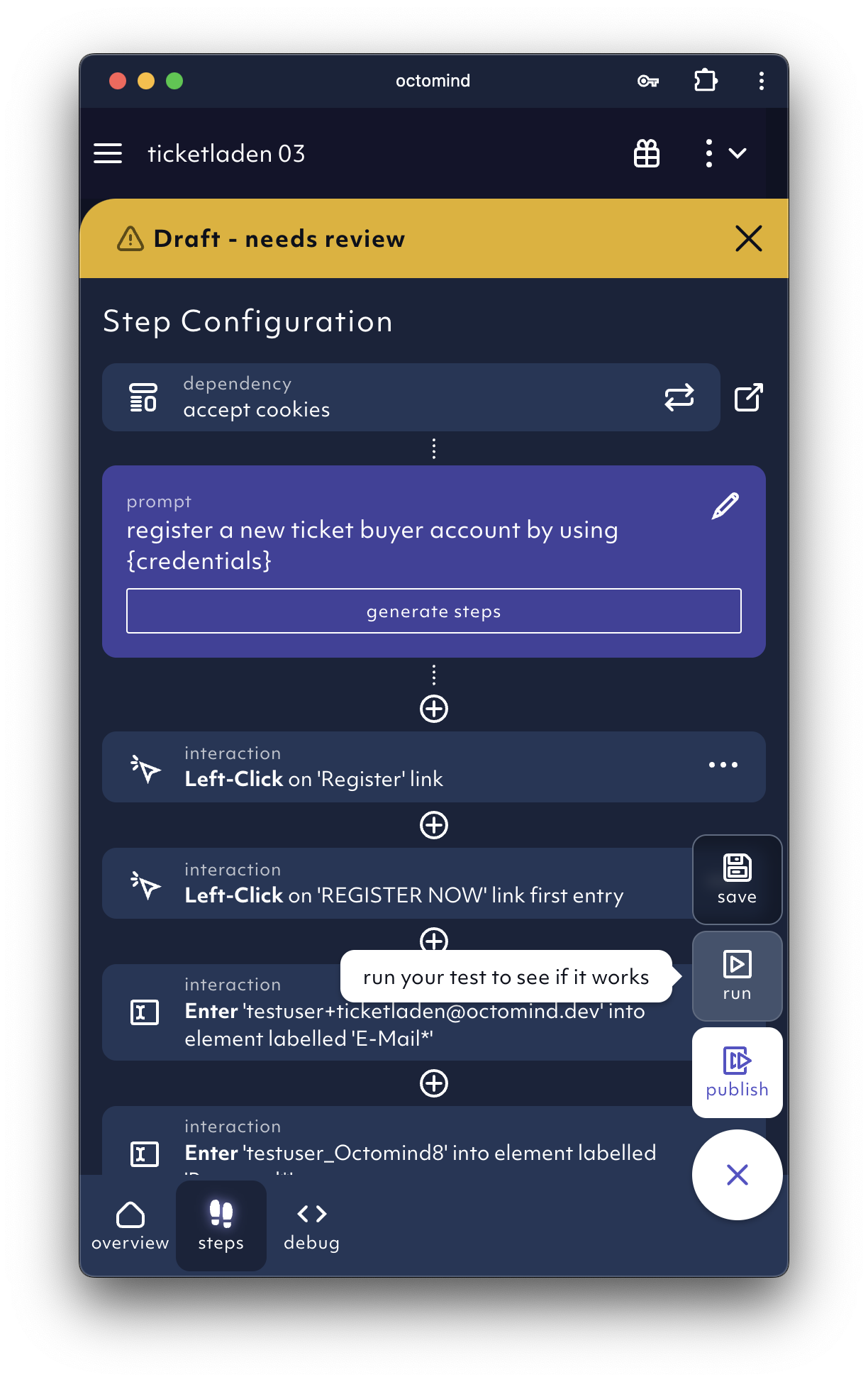
run test case for validation, screenshot 02/2024
Use run locally
run locally helps you to save execution time and you can directly see what is happening.
You can find the run locally button in the debug section of your test case.
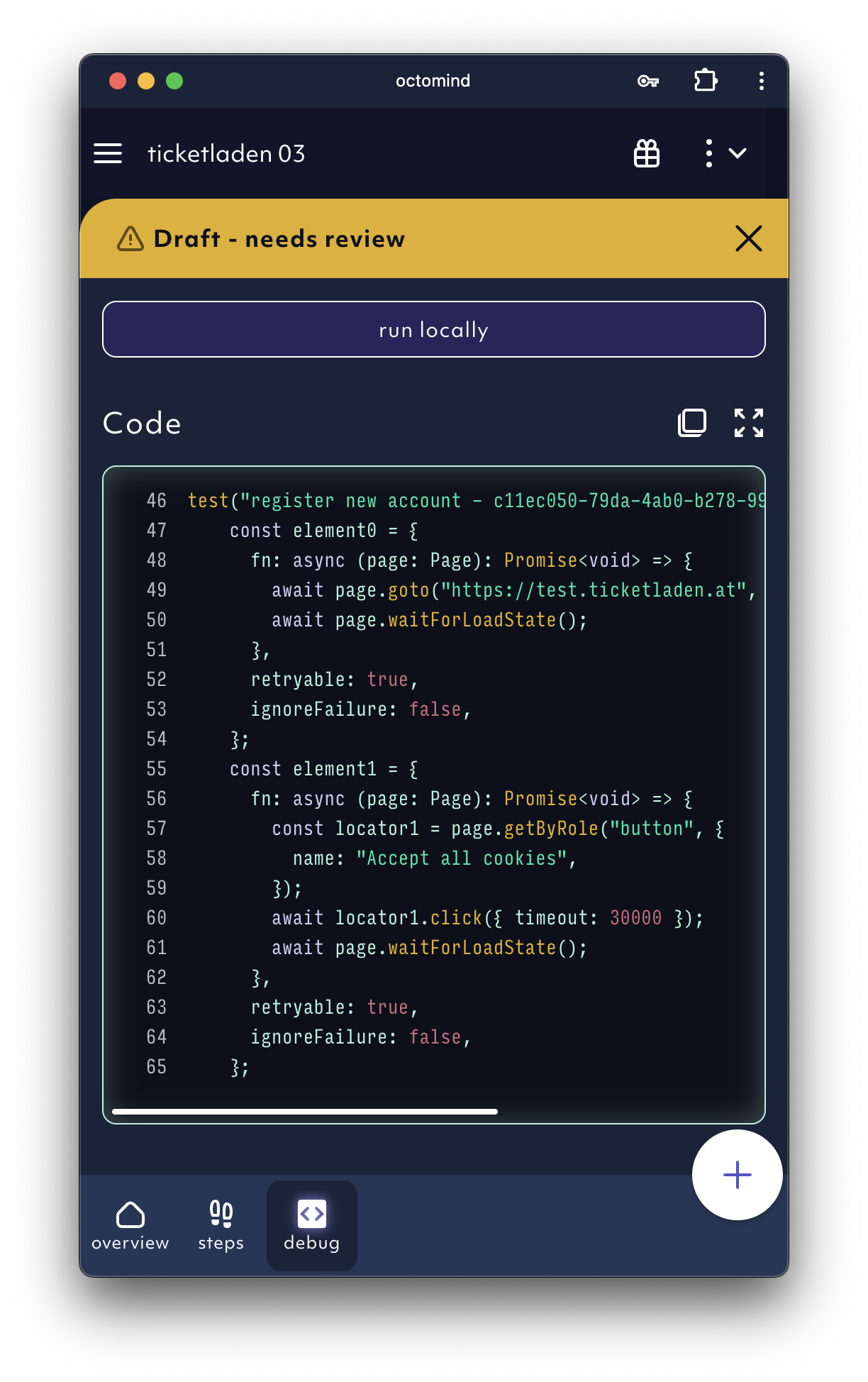
run locally: copy command view, screenshot 02/2024
run locally is most helpful for step by step adjustments since it is giving you the current state of a page.
You can use the locator tool to easily receive locators. Activate it and click on the desired element.
Then you can copy the locator.
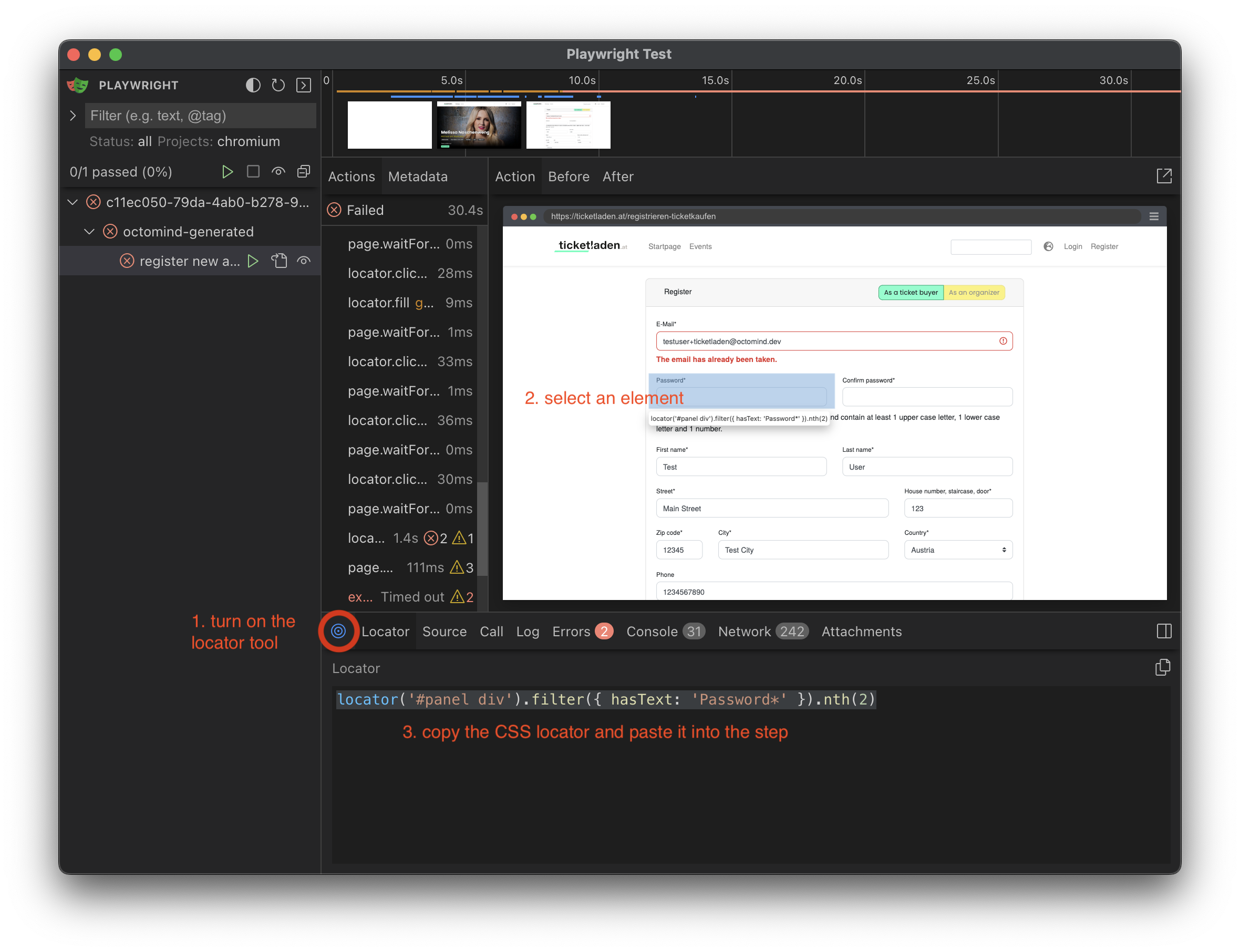
run locally: locator tool 02/2024